
Gallery
Browse one collection as a reading list — covers, cards, a preview of excerpts, or an annotation stream — without turning it into a syllabus. Switch with Gallery in the items toolbar.
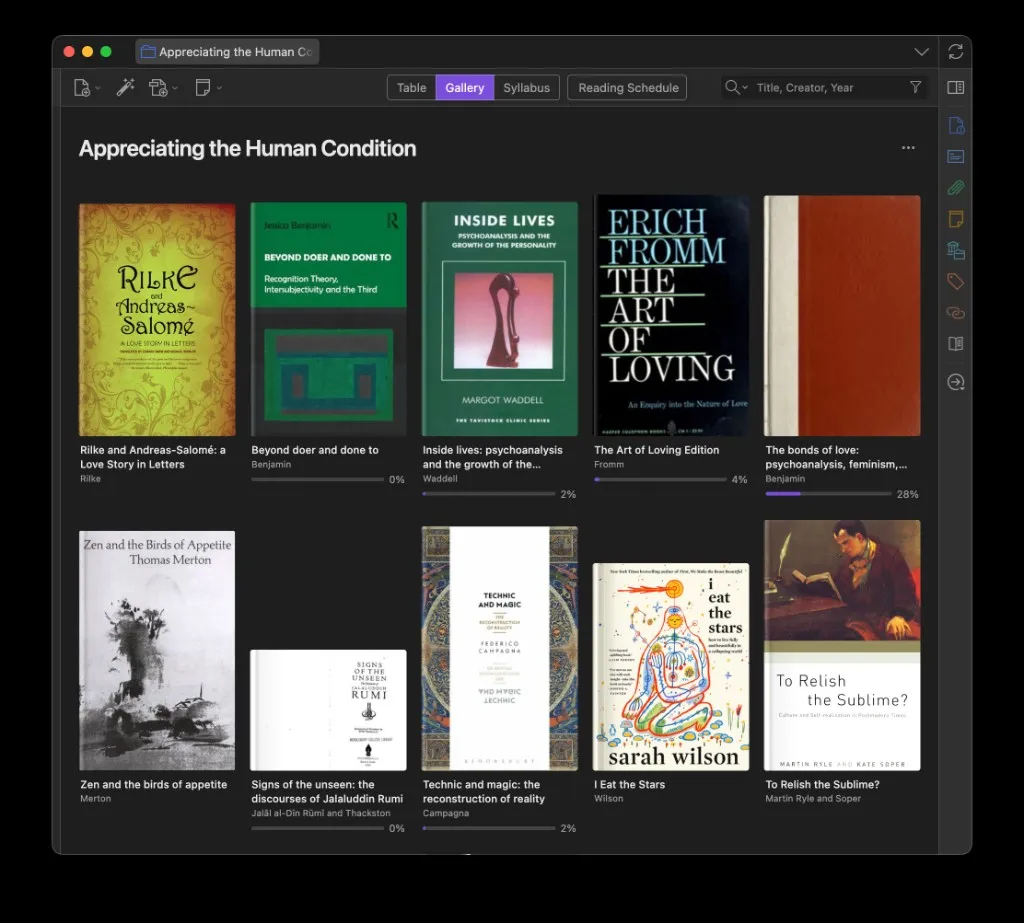
Covers come from attached images, EPUB/PDF art, ISBN lookups, or type-specific placeholders. Reading progress shows when available. If Zotero’s Show Items from Subcollections is on, those items are included.
Open View options from the (view / sort / group) control in the header. Choices are stored per collection. The globe button (Save as default) copies the current choice to collections that have not set their own. When you group items, a pill strip under the title jumps to each section.
Click a cover or card to select it in Zotero; double-click opens the best attachment.
Under the title you can Add a description… — a short blurb for the reading list. It is stored on the collection’s Personal Reading Order note (not the Syllabus note) and appears at the top of Gallery exports and published gallery pages. If you later turn the collection into a syllabus, that blurb is copied onto the Syllabus description when the syllabus is created.
An empty collection shows a Start a reading list prompt with a short how-to (add items, set reading order, optional description). Add items opens the library picker at the library root so you can choose items from elsewhere in the library.
View modes
Section titled “View modes”- Cover — artwork in a grid. Best for scanning books, papers, and web pages at a glance.
- Card — reading cards (title, creators, notes) in a narrower column. Density (Row / Standard / Expanded) is available in this mode.
- Preview — covers with excerpt blurbs beside them, using the same layout as Annotations. Items without a preview sit in a horizontal cover row.
- Annotations — covers with every highlight and note on the item. Quotes orders those excerpts by location in the document or by date added. Check Show items with no annotations to keep items without highlights in the list.
- Auto — collection order, or syllabus class order on a syllabus.
- A–Z — title.
- Date — item date, newest first.
- Added — date added, newest first.
- Last Read — most recently opened first.
- Personal Reading Order — your custom order when set; see Personal reading order.
Group by
Section titled “Group by”- None — one continuous list.
- Automatic — Preview only; builds shelves from classes, child collections, and frequent tags.
- Type — books, journal articles, web pages, and so on.
- Creator
- Tags
- Collections — child collections (when this folder has any).
On Home collection shelves (not Gallery itself), syllabus collections can also Group by Classes.
Gallery notes
Section titled “Gallery notes”A Gallery note is a short, collection-specific caption on an item — a reminder, a why-this-matters line, or a quote next to the cover. It is not a normal Zotero note, a reading instruction, or a pin intention.
The note belongs to this collection. The same item in another collection can have a different Gallery note, or none.
- Select the collection (Table or Gallery).
- Right-click an item → Add Gallery Note (or Edit Gallery Note).
- Write in Zotero’s note editor.
Click a Gallery note on a card, cover, or preview tile to open it. Right-click → Remove Gallery Note deletes only this collection’s Gallery note.
How it looks: under the title on Card; in the sidecar on Preview; beside the cover in Cover; still on the item in Annotations.
Use Gallery View options → Show personal notes to hide or show these captions without deleting them. The setting is per collection (same pattern as Show checkboxes).
Print, export, and share
Section titled “Print, export, and share”Use the globe icon in the Gallery header to Publish online…. You can also right-click the collection → Share via URL. The share wizard can publish as a personal reading list (mirroring Gallery view options) or as a syllabus when the collection has one. Checkboxes, read status, and Gallery notes stay private. (Syllabus view still has the printer menu for PDF / Word / Markdown / HTML.) Details: Print, export, and publish.