
Student: your first week
This walkthrough assumes you already use Zotero and have the Zotero Connector in your browser. Goal: one course collection you can study from by the end of the week.
1. Install the plugin
Section titled “1. Install the plugin”Follow Getting started if you have not installed yet. Prefer Zotero 8 or later — reading-list import needs it.
2. Import your institutional reading list
Section titled “2. Import your institutional reading list”If your university publishes lists on Talis Aspire, Leganto, KeyLinks, eReserve, or BLUEcloud Course Lists:
- Open the list in the browser and wait until the readings are visible (sign in with SSO if needed).
- Click the Zotero Connector button and save the page.
- In Zotero, open the new top-level collection and switch to Syllabus.
Details and supported platforms: Import a reading list.
If you do not have an institutional list, create a collection, add items as usual, click Turn into Syllabus, then assign classes by hand.
3. Check classes and due dates
Section titled “3. Check classes and due dates”In Syllabus view:
- Skim class titles — rename or merge if the import split weeks oddly.
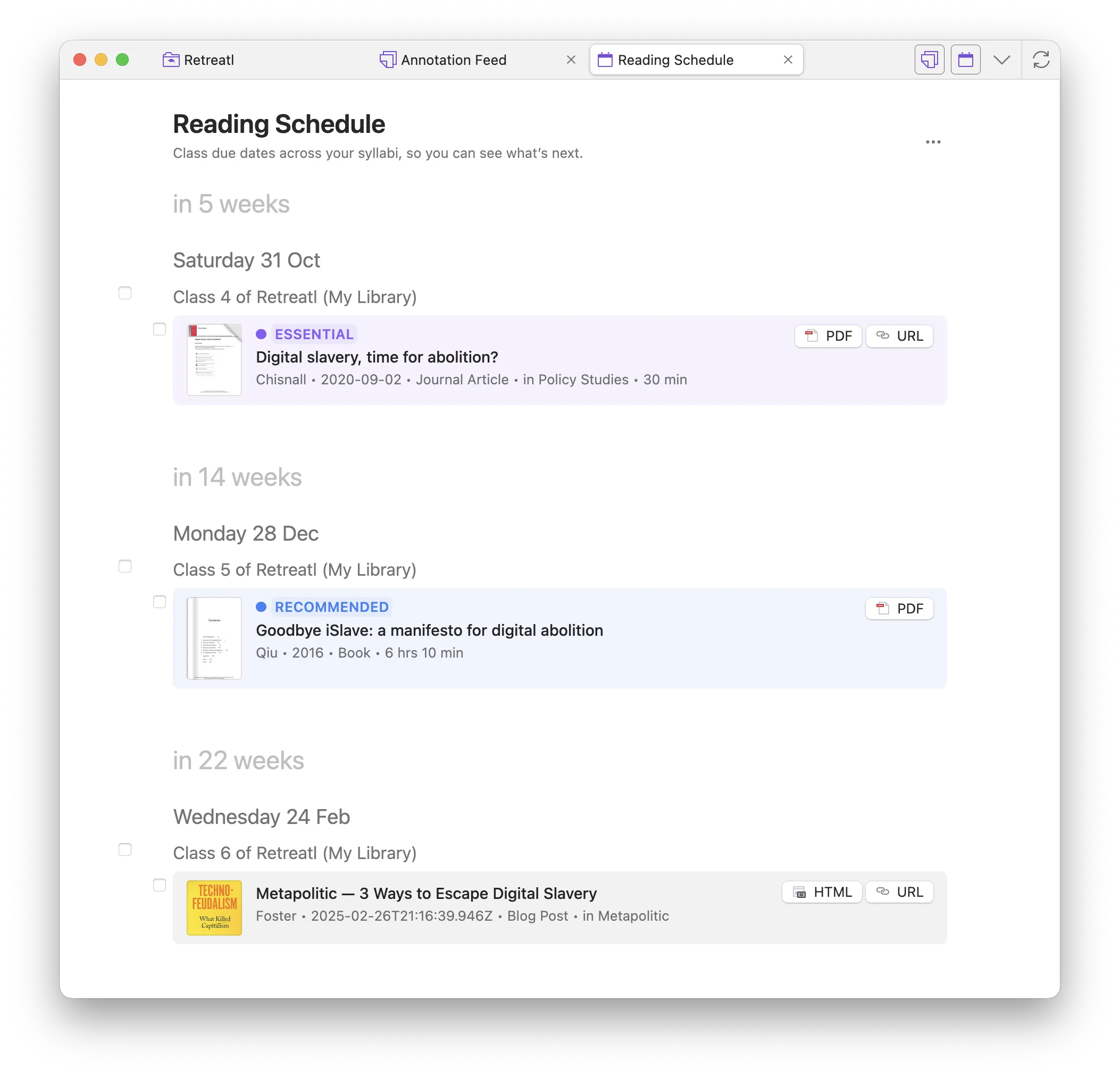
- Set a reading date on each class you care about this term.
- Mark done on anything you have already finished.
Those dates appear on Reading Schedule.
4. Pin what you are working on now
Section titled “4. Pin what you are working on now”- Right-click the course collection → Pin collection, or use the pin on the syllabus header.
- Right-click a paper you must finish → Add to Pinned.
Pinned items and collections show on Home and at the top of Reading Schedule. See Pinning.
5. Use Home as your daily start
Section titled “5. Use Home as your daily start”At the library root, switch to Home. Default shelves include Pinned, upcoming deadlines, recently read, and more. Configure shelves from the top-right Configure control.
6. Study with Lock
Section titled “6. Study with Lock”On the syllabus header, click Lock. The view becomes read-only so you do not accidentally drag or reassign while reading. Unlock when you need to edit again.
Checklist for week one
Section titled “Checklist for week one”- Plugin installed; Views you need are on in Preferences
- Course collection exists as a syllabus
- Reading dates set for upcoming classes
- Collection or key items pinned
- You know how to open Reading Schedule and Home
When something is unclear, see the how-to guides or ask in Community.