
Syllabus
Structure a collection by class (or week / session — you choose the word). Assign readings, set priorities and instructions, drag items into place, and export or publish the list.
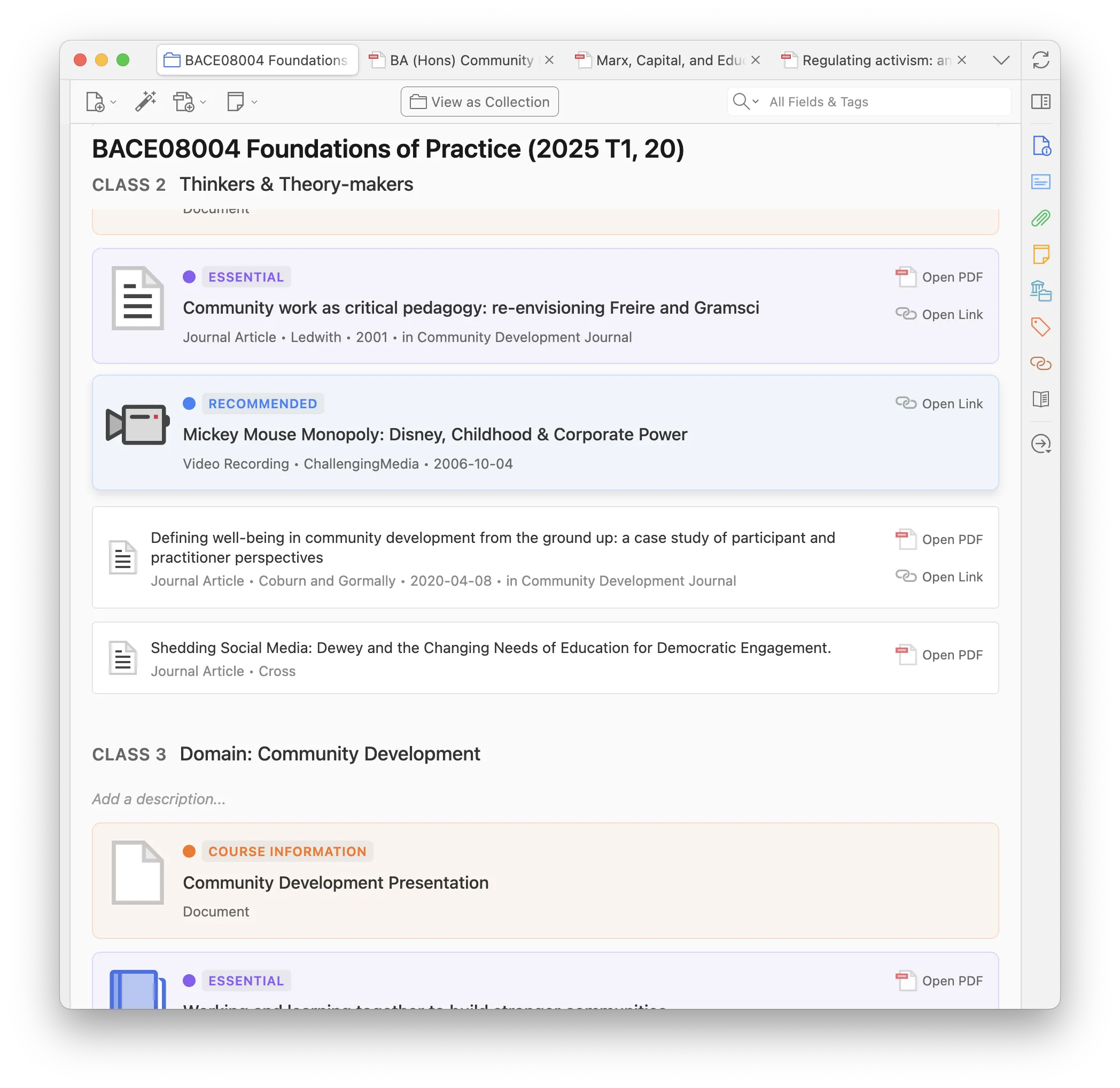
Open a syllabus
Section titled “Open a syllabus”- Select the collection.
- Click Turn into Syllabus (first time) or Syllabus in the items toolbar.
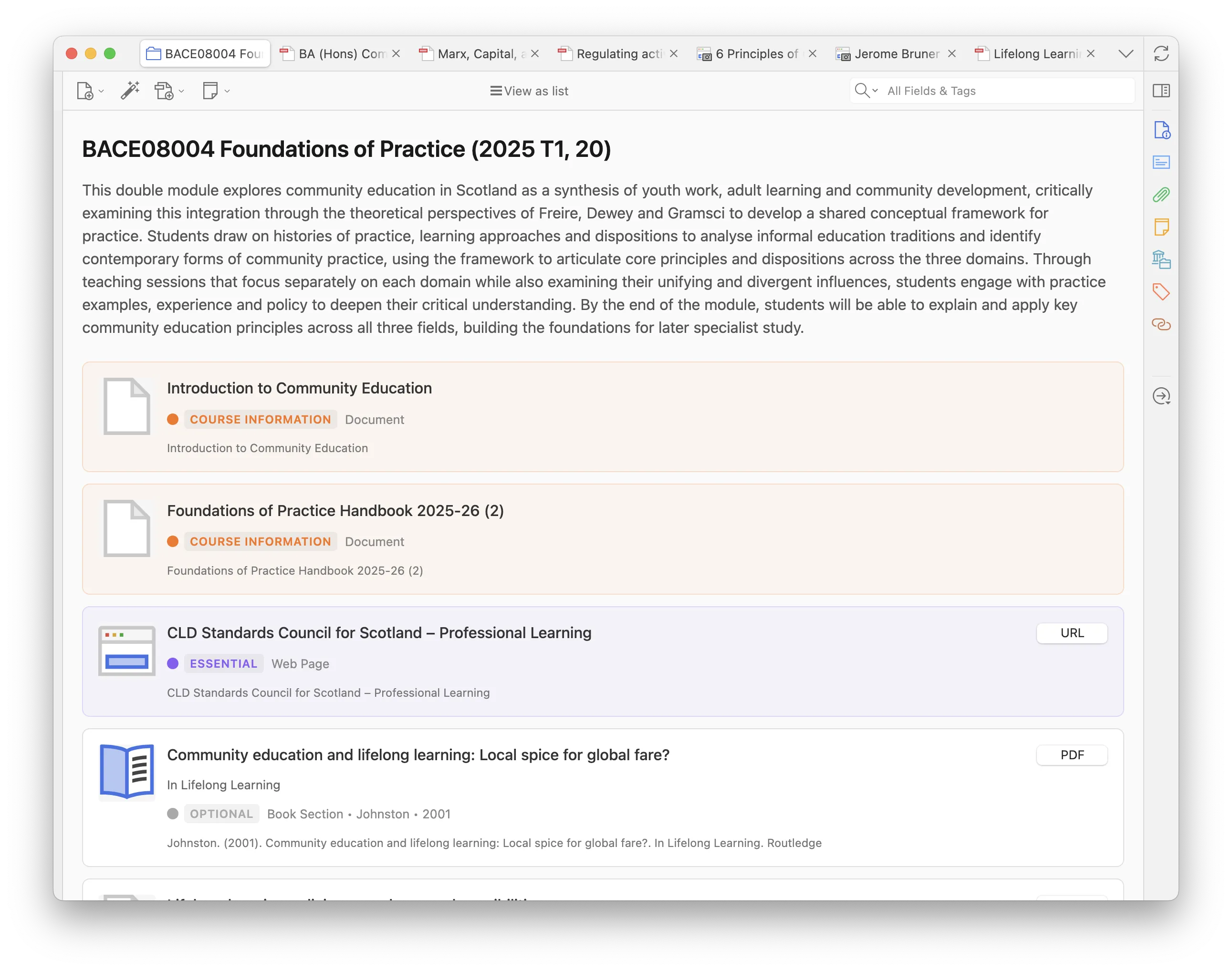
Auto-managed folders (Reading Schedule, class folders) use Checklist instead of Syllabus.
Classes and assignments
Section titled “Classes and assignments”Add classes with Add Class, or right-click an item → Assign to a class → Add to new class.
Then assign readings by:
- Dragging an item onto a class in Syllabus view.
- Right-click → Assign to a class and picking the class (the current syllabus, or another syllabus in the submenu).
- Right-click → Assign to a class → Search classes…, or Add to class… in the item pane, to search every syllabus. This works even when the item pane is closed.
An item can be assigned more than once (useful for breaking a long reading into chunks). Hover an item in Syllabus view and use Duplicate. If you merge duplicate items in Zotero, the surviving item keeps its class assignment.
Unassigned items stay under Further reading.
Give each class a title, description, and optional reading date. Mark a class or an item done to track what you have already read.
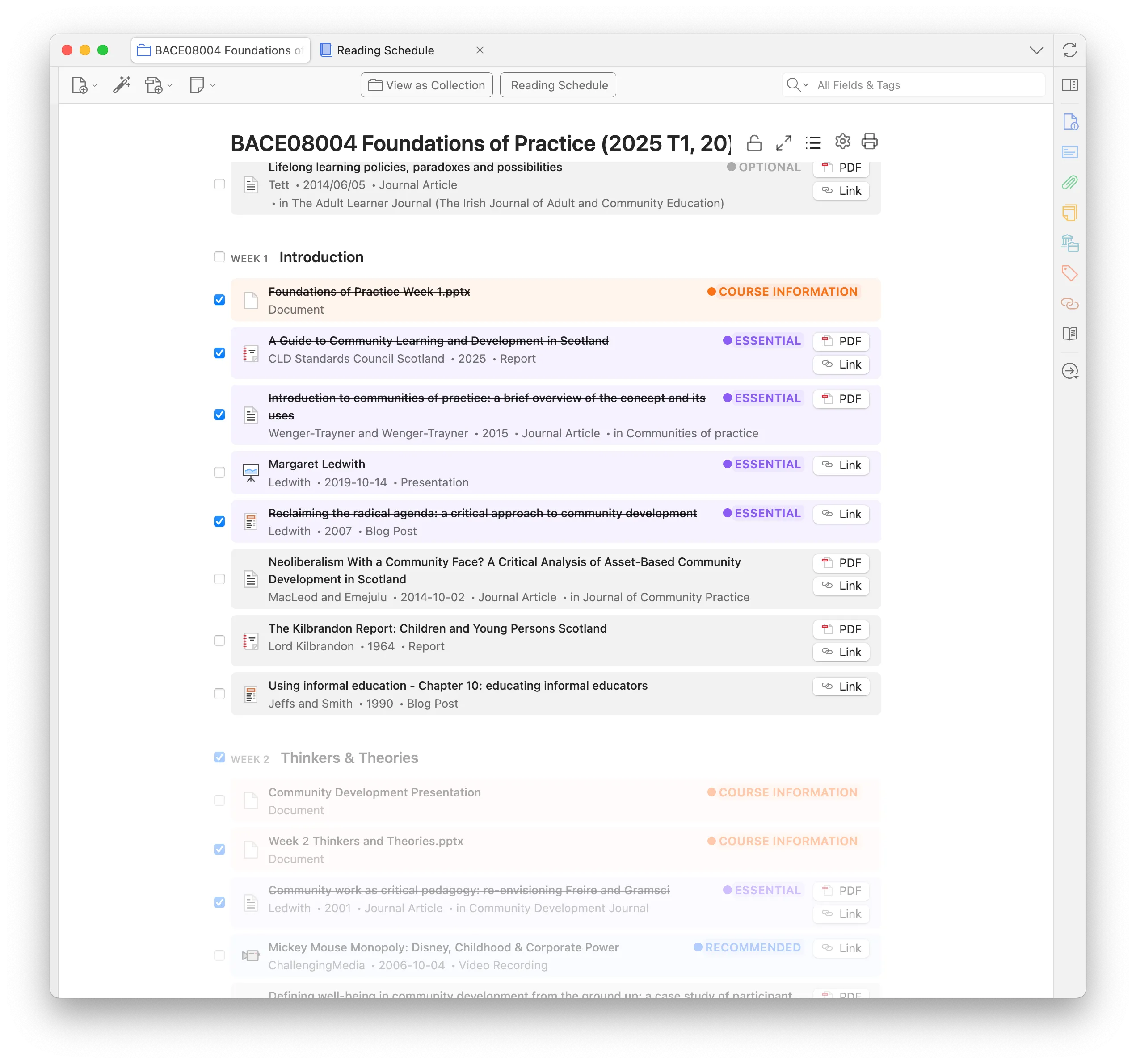
Course documents

Section titled “Course documents”Give items the Course Information priority (or your own top priority) so handouts and links stay at the top of the syllabus. This is not the same as pinning an item to Home or Reading Schedule.
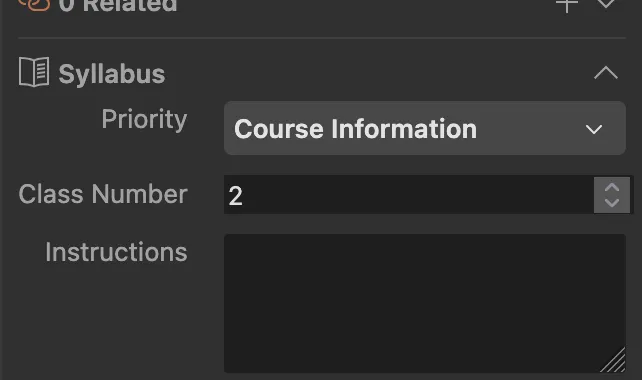
Reading instructions, priority, and done
Section titled “Reading instructions, priority, and done”Use the Reading assignments section in the item pane to set class, instruction, priority, and done status. Add to class… there (or in the item context menu) assigns the selected item to any class on any syllabus, and adds it to that collection if needed.
Right-click an item to change class or priority without opening the pane.
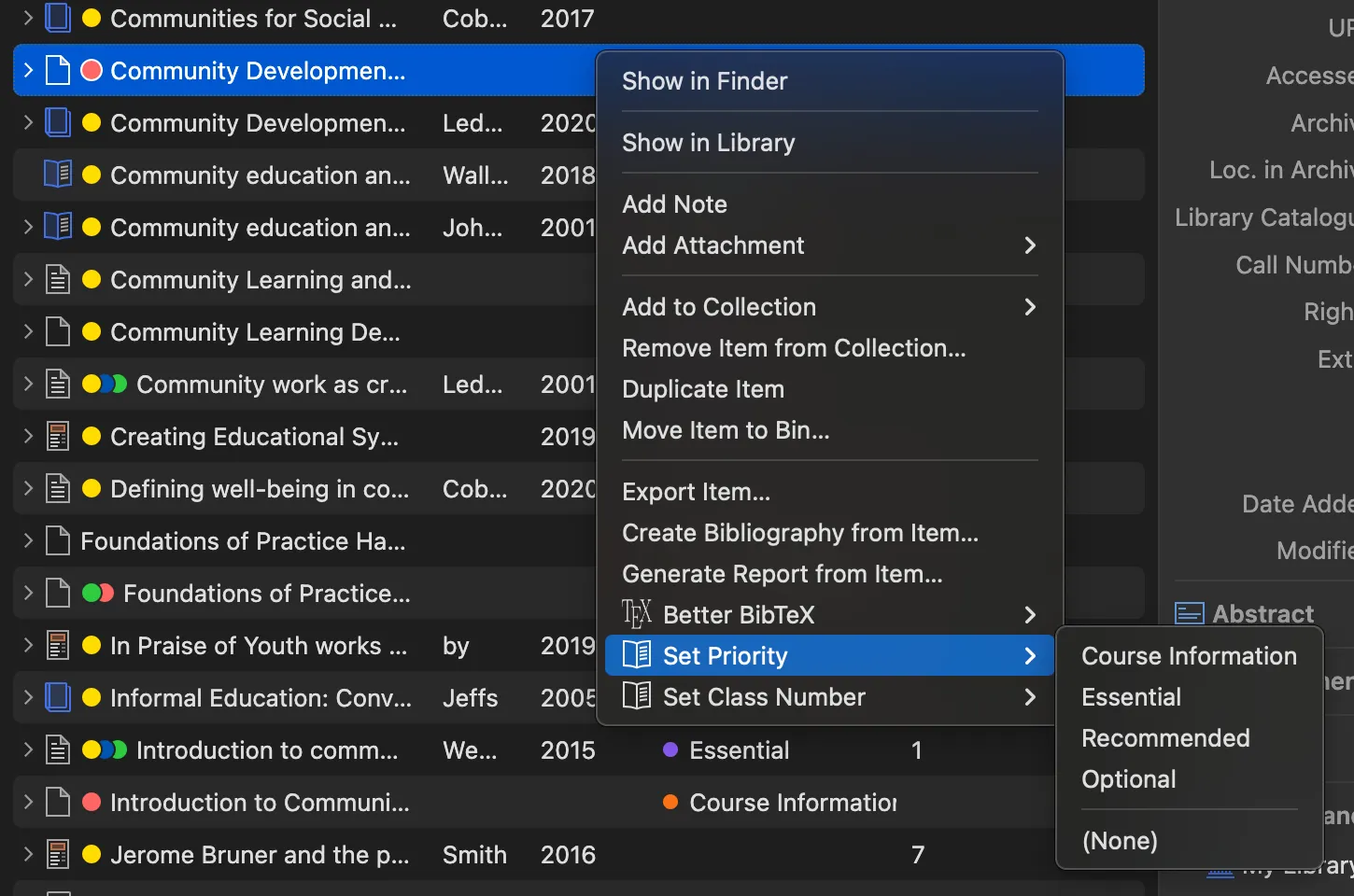
Default priorities are Essential, Recommended, Optional, and Course Information. Edit names, colors, and order in Syllabus Settings, or set library-wide defaults in Preferences.
Reorder and move
Section titled “Reorder and move”
Drag to reorder within a class, or reset to natural order. Drag between classes to move an assignment.
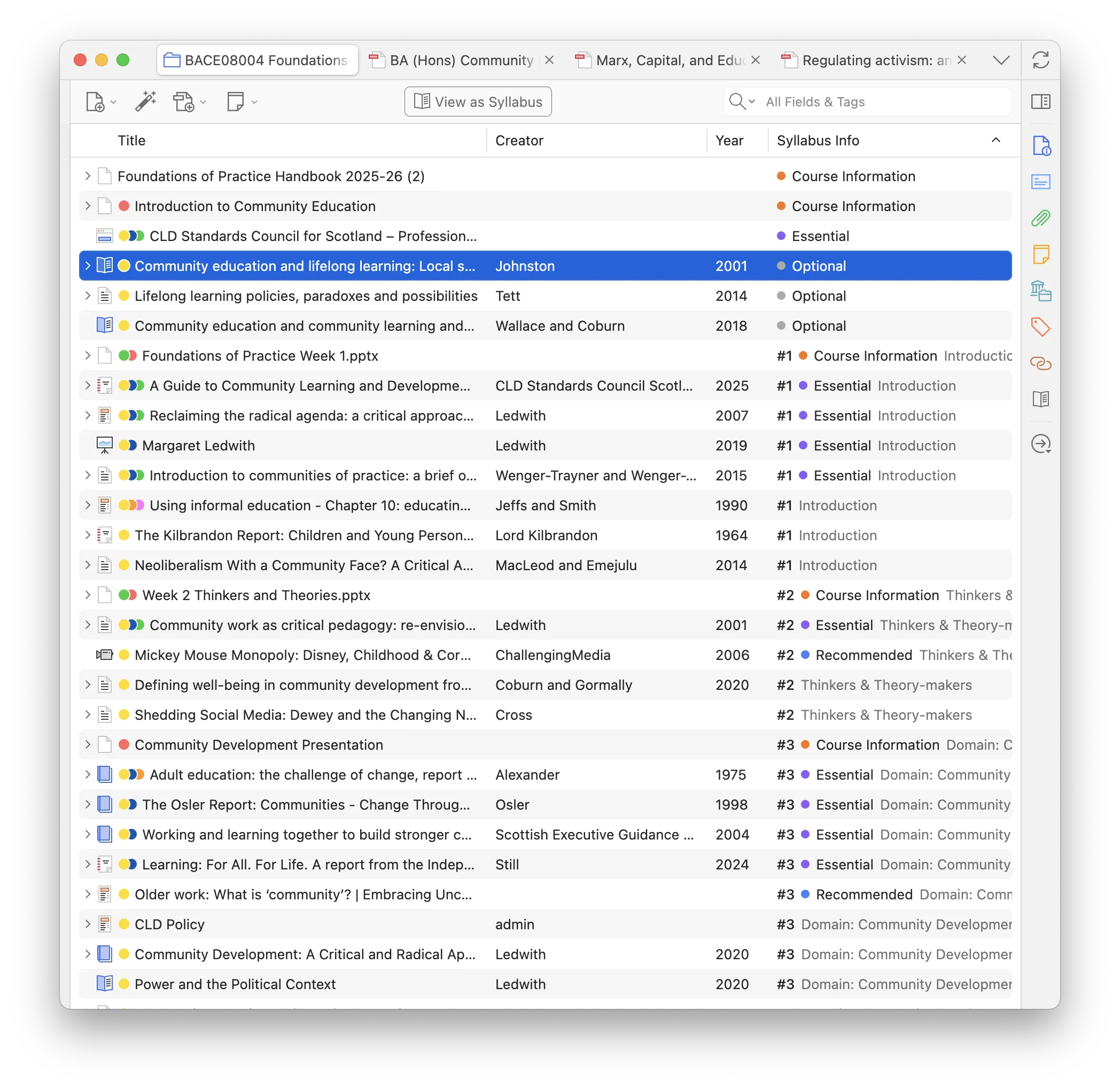
In Table view, a sortable Syllabus Class / Assignment column summarises class, priority, and status. Sort by it to see readings in syllabus order.
Settings, lock, and class folders
Section titled “Settings, lock, and class folders”The header has Settings (nomenclature such as week / class / session, priorities, bibliography, class subcollections), Lock (read-only for studying), Print, and Pin collection.
Class subcollections is off by default. When on, the plugin creates a child folder per class and keeps membership in sync. Do not add or remove items in those folders by hand. Leave this off unless you want folder mirrors. See Auto-managed folders.
If the Zotero Reading List plugin is installed, its reading status appears in Syllabus view.
Class notes
Section titled “Class notes”Standalone notes in the collection can be assigned to a class like any reading. They use the same Syllabus cards and ordering, with a fixed yellow Class Note label instead of a priority. See Class notes.
Save, print, and publish
Section titled “Save, print, and publish”See Print, export, and publish. You can also import a reading list from the browser.